

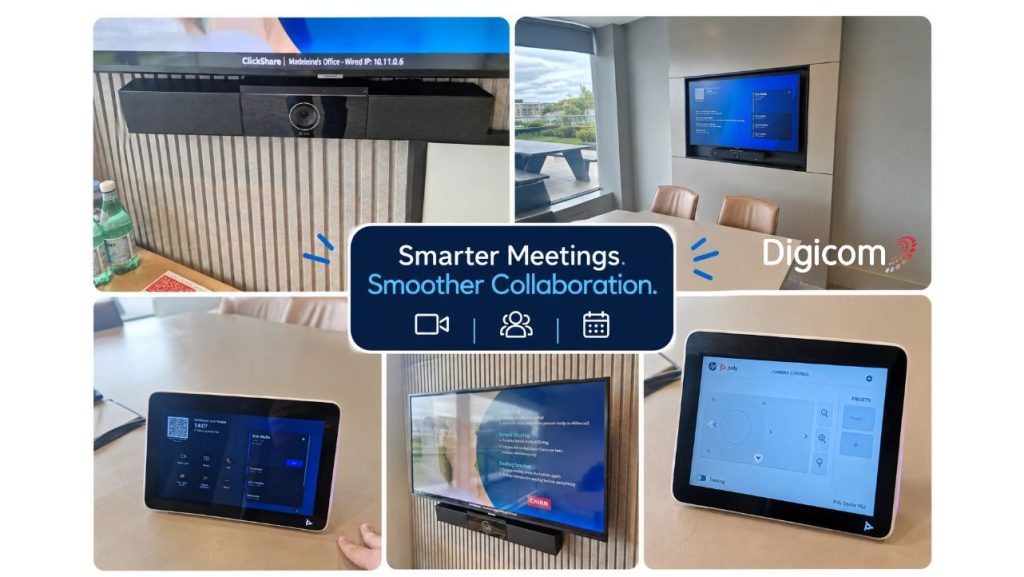
A site cabin and a head office boardroom need different meeting rooms. One Irish residential property developer now runs both: BYOD rooms on site and native Microsoft Teams Rooms at head office, each built around how people work in that space.
Anyone who has stood in a site cabin with a laptop, a loose HDMI cable and the wrong adapter knows how fast a short catch-up loses its first few minutes. This client wanted that gone, on site and in the office.
This case study covers the two set-ups Digicom delivered, how a meeting starts in each, and how to decide which model fits your own rooms.
Product details verified against Barco, HP Poly and Microsoft documentation as of November 2026.
Contents
- About the Client
- On Site: BYOD Meeting Rooms in Every Site Cabin
- At Head Office: Native Microsoft Teams Rooms
- BYOD or Microsoft Teams Rooms: Which Fits Which Space?
- What Multi-Site Businesses Can Take From This
- Final Summary
- FAQs
About the Client
The client is an established Irish residential property developer. It designs, builds and delivers new-build homes, apartments and large-scale residential communities across Ireland.
Sustainable development and energy efficiency sit at the centre of its work. Its projects run from initial planning through construction to customer care.
That spread of work means meetings happen in two different places. Project teams meet in site cabins on live developments. Office teams meet at head office. Digicom built a meeting room model for each.
On Site: BYOD Meeting Rooms in Every Site Cabin
Digicom turned the client’s site cabins into BYOD (bring your own device) meeting rooms using Barco ClickShare CX and HP Poly video bars. In a BYOD room, the meeting runs from your own laptop, and the room supplies the camera, microphones, speakers and screen.
How a Meeting Starts in a Site Cabin
- Walk in and plug the ClickShare Button into your laptop.
- Start the meeting on the platform you prefer, whether Microsoft Teams, Zoom or Webex.
- Within seconds, your laptop takes wireless control of the room’s HP Poly camera, microphones and speakers.
There are no cables to stretch across the table. No adapters to match to a particular laptop. No AV settings to work through before the call. Staff focus on the meeting, not on troubleshooting hardware.
Barco describes its ClickShare Conference range as laptop-based conferencing for BYOD rooms, with room peripherals connecting wirelessly to the user’s laptop. Barco lists Microsoft Teams, Zoom, Google Meet and Webex as supported platforms for the CX models.
One Routine Across Every Cabin Size
Site cabins come in different sizes, so Digicom fitted a range of HP Poly video bars to suit each room. The video bar changes from cabin to cabin. The ClickShare routine stays the same.
That consistency matters on a construction programme. Someone who has run a meeting in one cabin knows how to run one in any of them.
HP’s range of Poly USB video bars covers small, medium and large rooms, with models built for PC room or BYOD use. Matching each bar to each room is where choosing video conferencing hardware carefully pays off.
Why BYOD Suits Site Cabins
A BYOD room has no dedicated meeting computer to set up, update or secure. The meeting runs on the laptop people already carry to site.
Site meetings can also bring in outside consultants and contractors who work on different platforms. A BYOD room hosts Teams, Zoom or Webex with no change to the room itself.
At Head Office: Native Microsoft Teams Rooms
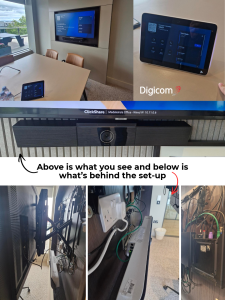
At head office, Digicom standardised the meeting spaces on native Microsoft Teams Rooms, pairing HP Poly video bars with tabletop touch panels. Native means the room runs Teams itself, so nobody needs a laptop to start or join a call.
The result is an enterprise-grade hybrid workspace with the same set-up in every office room.
How a Meeting Starts at Head Office
- Walk in and check the room’s schedule on the touch console.
- Tap One Touch Join for your meeting.
- The display powers on, and the Poly video bar starts its intelligent tracking camera and studio-grade audio automatically.
Microsoft’s documentation on the Teams Rooms home screen confirms the console shows the room calendar and lets users join scheduled meetings with a single touch. For the full set-up process, read our Microsoft Teams Rooms guide.
What Changed for Staff and IT
- No laptop dependency. Staff join meetings without bringing or connecting a device.
- Less technical anxiety. Every room shows the same interface, so nobody faces an unfamiliar set-up before a meeting.
- Faster starts. Meeting start delays dropped sharply.
- Simpler sharing. Sharing content locally in the room became easier.
- Fewer urgent tickets. The daily volume of urgent IT support tickets about meeting rooms went away.
For an IT team, that last point frees time for project work instead of fixing rooms.
BYOD or Microsoft Teams Rooms: Which Fits Which Space?
BYOD suits temporary, flexible or mixed-platform spaces, while native Microsoft Teams Rooms suit permanent offices that run on Teams. This client uses both, matched to how each space works.
BYOD with Barco ClickShare CX:
- The meeting runs on the user’s own laptop.
- Teams, Zoom, Webex and Google Meet all work.
- There is no room computer to manage.
- Best for site cabins, project rooms and rooms used by visitors.
Native Microsoft Teams Rooms:
- The meeting runs on the room’s own Teams system.
- No laptop is needed to join.
- The console shows the room calendar with One Touch Join.
- Best for permanent offices standardised on Teams.
The choice is per room, not per company. Many businesses need both.
What Multi-Site Businesses Can Take From This
- Match the room to the work. A temporary site cabin and a permanent boardroom have different needs.
- Keep the routine identical. Hardware can vary by room size, but users should start every meeting the same way.
- Standardise where the platform is settled. If a location runs on Teams, native Teams Rooms remove the need for a laptop.
- Plan the support, not only the install. Rooms stay reliable when someone owns their upkeep, which is the job of ongoing AV support plans.
Final Summary
This Irish property developer runs two meeting room models, each fitted to its space. Site cabins use Barco ClickShare CX with HP Poly video bars, so staff plug in, start their meeting on any platform and get going within seconds. Head office uses native Microsoft Teams Rooms with HP Poly video bars and touch panels, so staff tap once and the room does the rest.
The outcome is the same in both places. Meetings start faster, users stop wrestling with hardware, and IT stops fielding urgent room calls.
If your teams meet in more than one kind of space, talk to Digicom about the right set-up for each room.
FAQs
What is a BYOD meeting room?
A BYOD meeting room lets you run a video meeting from your own laptop while using the room’s camera, microphones, speakers and display. The room has no dedicated meeting computer. You bring the device and the platform, and the room supplies the audio and video.
How does Barco ClickShare CX work?
Barco ClickShare CX connects your laptop wirelessly to the room’s camera, microphones and speakers. In this client’s site cabins, staff plug in the ClickShare Button, start their meeting in Teams, Zoom or Webex, and the room’s HP Poly video bar takes over the audio and video within seconds.
What is One Touch Join in Microsoft Teams Rooms?
One Touch Join lets you start a scheduled Teams meeting from the room’s console with a single tap. The console shows the room’s calendar, so you pick your meeting from the list and the room connects without a laptop.
Should a business choose BYOD or Microsoft Teams Rooms?
Choose by space, not by company. BYOD suits temporary rooms, site cabins and rooms where guests use different platforms. Native Microsoft Teams Rooms suit permanent offices that have standardised on Teams. This client uses both.
Can different rooms use different video bars and still feel the same?
Yes. In this project, each site cabin has an HP Poly video bar sized to the room, but every cabin uses the same ClickShare routine. Users never need to learn a new process when they move between sites.
Do HP Poly video bars suit both small and large rooms?
Yes. HP’s Poly USB video bar range includes models for small, medium and large rooms, with several built for PC room or BYOD use. The right model depends on room size, seating layout and how far the camera needs to see.
